
Multiaxis Programming Tips: A Workflow Guide Using ENCY CAD/CAM

Good multiaxis results start at the computer, not at the machine. Most of the time lost in 4- and 5-axis work comes from programming loops: a collision found late, a postprocessor that doesn't match the machine, a program that needs endless tweaking at the control. This guide walks through the programming workflow from setup to proven NC code, with the ENCY CAD/CAM features that help at each stage. All feature details come from the ENCY website.
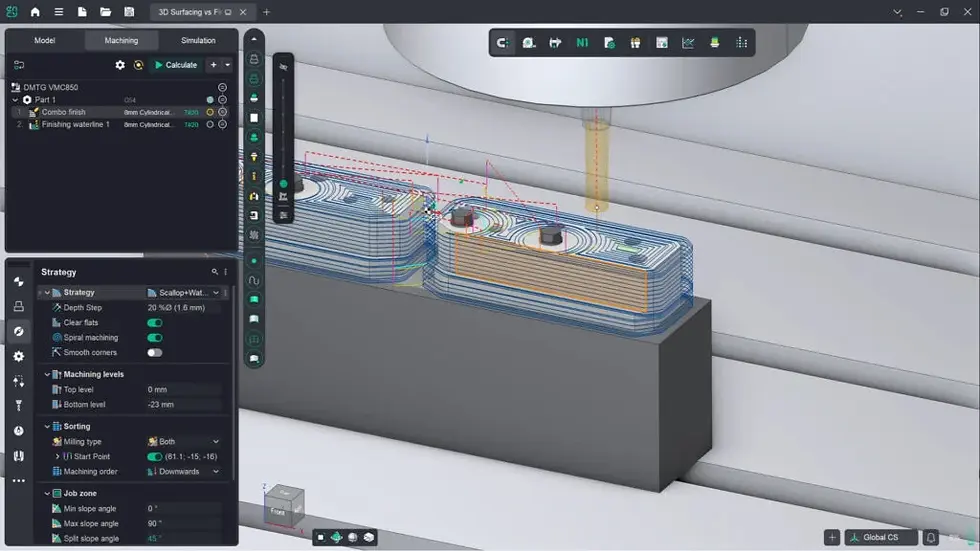
1. Build (or import) the machine's digital twin first
Before you create a single operation, make sure the software knows your machine. A virtual copy with the right axes, travel limits and geometry means every later decision is checked against reality.
ENCY feature: Machine awareness and MachineMaker. ENCY builds the machine's digital twin into the programming process from the start, which helps it spot problems early and cut down on programming loops. If your machine isn't available, MachineMaker lets you create CNC and robot digital twins without coding: import 3D models, define kinematics and fine-tune parameters with interactive tools, drawing on an online component library.
Tip: In ENCY 3.0, the new Digital Machine Center is a catalog of postprocessors, machine schemas, interpreters and complete machine kits, searchable by machine, controller or brand. The site says you can request a temporary trial of an asset directly from the catalog and test it in your own workflow.

2. Set up stock, fixtures and tools realistically
Your simulation is only as honest as your setup. A vise modeled too small, or a holder that doesn't match the real one, will give false confidence.
ENCY feature: Tool Assemblies (ENCY 3.0). Tooling now lives in the project as complete assemblies. You can match tools to operations, swap adapters or positions, and edit dimensions in the 3D context of the part and machine. You can also import components from manufacturer catalogs.
ENCY feature: Stock tracking and fixture awareness. ENCY follows the current state of the workpiece as machining progresses and takes fixture positions into account to avoid interference.

3. Choose the right level of multiaxis for each feature
Not every surface needs simultaneous 5-axis motion. A sensible programming plan mixes strategies: 3-axis for flat areas, indexed 3+2 for multi-face parts, and simultaneous motion for the surfaces that demand it.
ENCY feature: Strategies from 2D to 5D, plus 3-axis conversion. ENCY offers a range of machining strategies from 2D up to 5D, and for rotary work it can adapt 3-axis toolpaths to run around a rotary axis. For 5-axis, it provides 5D Surface, Swarf and 6D Contour strategies.
4. Let the software handle tool orientation limits
Orientation is where many 5-axis programs go wrong. Tool tilt that looks fine in a toolpath preview can run into axis limits or cause a sudden rotation near a singularity.
ENCY feature: TCPM, RTCP and TWP with singularity avoidance. ENCY supports Tool Center Point Management, Rotary Tool Center Point and Tilted Working Plane with local coordinate systems. It also plans toolpaths to mitigate C-axis singularities, keeping motion stable.
Tip: For robots, ENCY 3.0's improved Smart Motion generates 5D and 6D trajectories without requiring an axes map, while keeping motion within axis limits and avoiding singularities and collisions. A map-based fine-tune remains optional.

5. Protect the holder with collision checks and automatic tilting
In multiaxis work, the holder is the part that most often meets the wall. Check it at the programming stage, not at the machine.
ENCY feature: Check Holder and Adaptive Tilting. ENCY performs holder collision detection against the workpiece and fixtures. Adaptive Tilting (new in 3.0) detects a holder collision and tilts the tool along two axes at once to steer clear, converting 3-axis toolpaths to 5-axis motion only where needed.
6. Edit the toolpath instead of recalculating from scratch
Even a good strategy can produce one awkward pass. Being able to fix it directly saves a lot of back-and-forth.
ENCY feature: Interactive editing. ENCY lets you adjust machining parameters on the fly, control the virtual machine, and edit toolpaths directly, with instant visual feedback. In 6D Contour operations you can adjust the tool center point and tool axis orientation at points along the path. ENCY 3.0 also adds toolpath recalculation controls to speed up daily work.
7. Tune feeds and speeds for the actual cut
A flawless toolpath can still produce poor results with the wrong cutting data. Matching feeds and speeds to tool, material and method is part of programming, not an afterthought.
ENCY feature: Feeds & Speeds Calculator (ENCY 3.0). It calculates cutting speed, RPM, feed and power from the selected tool, material and cutting method. You can use manufacturer or custom datasets, adjust the load and send the optimized values straight into the operation.
8. Verify in two stages: toolpath simulation, then G-code
The toolpath on screen is not the program that runs on the machine. The postprocessor sits in between, so verify both.
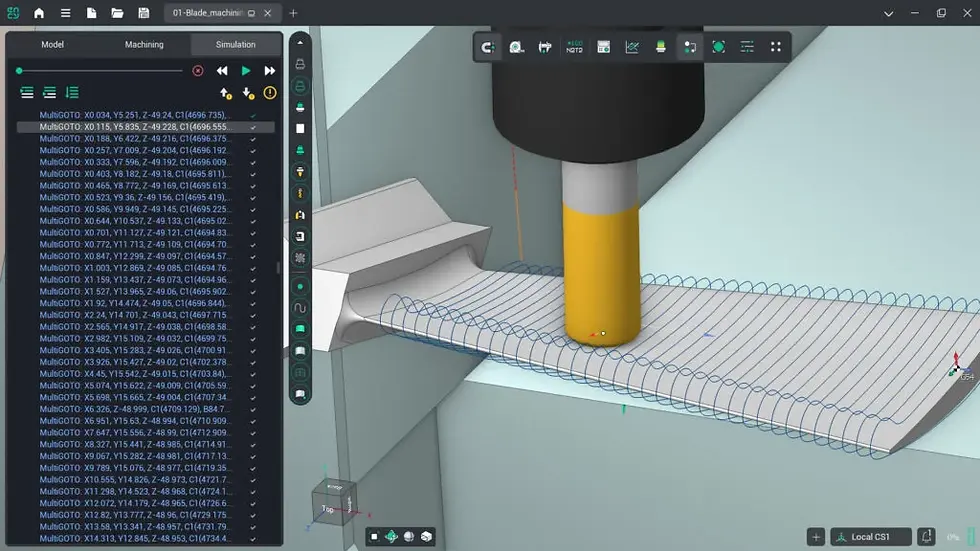
ENCY feature: Dual simulation engines and G-code verification. ENCY simulates material removal on the machine's digital twin, with collision, axis over-travel and plunge-angle checks. Voxel simulation is the fast default, while Solid simulation is slower but more precise, with scallop-height visualization down to 0.01 mm. A final G-code-based simulation checks the post-processed code with the full machine, tools, fixtures and workpiece.
Tip: ENCY Tuner is a shop-floor tool for NC-code simulation, editing and re-engineering. According to ENCY, it can bring a legacy NC-code library back to life with full simulation and editing, which helps when switching from another CAM system.
9. Automate what you repeat
If you program similar parts often, repetition is your enemy.
ENCY feature: Macros and Cam Agent. ENCY 3.0's Macros record a workflow, including operations, geometry assignments, selections and project settings, as an editable extension you can replay on similar jobs and share with your team. The Cam Agent (beta) is an in-app AI assistant. Its listed capabilities include setting up machine, material and coordinate systems, detecting pockets and holes, choosing tools and cutting data, running simulations, checking for collisions and gouges, and estimating cycle time and cost. A fully automated model-to-G-code mode is also listed. ENCY's platform page also describes an ENCY AI assistant that analyzes the 3D model and offers workflow recommendations.
10. Keep the whole team in the loop
A multiaxis program touches the programmer, the operator and often a supplier. Slow communication means slow fixes at the machine.
ENCY feature: ENCY Clouds (part of ENCY X). Share projects with a click, keep local and cloud projects in sync, and chat with screenshots, videos and documents attached to the project. A mobile app lets operators upload photos and video straight to the project chat. ENCY also has an online project library with hundreds of shared machining projects, which can serve as a starting point for similar parts.
A quick programming checklist
Machine twin and postprocessor match your real machine.
Stock, fixtures and tool assemblies are modeled accurately.
Strategy matches each feature (3-axis, 3+2, simultaneous).
Holder checked; tilting and singularities handled.
Feeds and speeds set for the material.
Toolpath simulated, then post-processed G-code verified.
Project shared with the operator, with notes and visuals.
Try it on your own part
ENCY's website offers a free trial with 30 days of full access. Run one real part through the whole checklist and see where your current workflow loses time.
Start your trial or talk to the team at


Comments